


New to taking payments with EFTPOS, or helping someone get started? Here’s a quick reference guide for using a Verifone Android EFTPOS terminal.
How do I process a payment on an EFTPOS terminal?
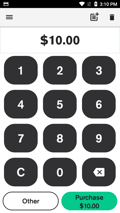
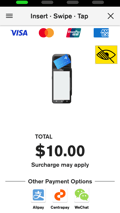
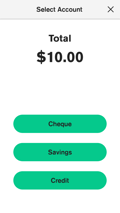
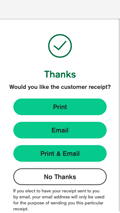
- Enter the transaction amount
- Tap Purchase
- Your customer presents their card or smart device and enters their PIN (if required)
- Your terminal processes the transaction and then displays Approved or Declined
- Customer selects their preferred receipt option
Most Eftpos NZ terminals also support contactless cards and mobile wallets like Apple Pay and Google Pay, and can also support payment via QR code (Payap by Centrapay, Alipay, WeChat Pay).
TIP: Press the X in the top right hand corner to cancel the transaction if required.
More info: How to process a transaction
How do I refund a payment?
Before you can process refunds you will need to set up a refund facility with the bank you have your merchant account with. You will also need a manager or cashier passcode.
1. Enter the refund amount
2. Tap Other
3. Tap Refund (if Refund is missing from this menu, you need to set up a refund facility with your bank)
4. Enter a passcode
5. Customer presents card or device and enters their PIN (if required)
6. Terminal displays Approved or Declined
7. Customer selects preferred receipt option
More info: How to refund a transaction
How do I reprint a receipt?
You can reprint or email receipts for transactions processed in the past 90 days
- From the Payment screen, tap the hamburger menu

- Tap Transaction History
- Tap the required transaction
- Tap Receipt
- Tap Merchant Copy or Customer Copy
- Reprint or email the receipt
More info: Manage your EFTPOS receipts
Settlement
Settlement refers to the process of transferring funds from a customer's bank account to a merchant's account after a transaction has been completed. Your bank facilitates the collection of funds on your behalf, which are then 'settled' into your merchant bank account.
You will typically receive your settlement between 10:15 PM and 11:55 PM daily. Some payment types like AMEX or gift cards settle separately and take longer.
What is a settlement cutover?
A settlement cutover closes the current trading day and starts a new one. Your terminal automatically runs this by 9:30 PM daily (if connected to the Verifone network), but you can also do it manually. Any transactions after a manual cutover are included in the next day’s settlement.
Tip: If you trade outside standard hours, call 0800 EFTPOS (option 2) to request a customised cutover time.
How do I check my settlement totals on Android EFTPOS?
You can use two types of reports:
Settlement Enquiry report
-
From the Payment screen, tap the hamburger menu
-
Tap Reports
-
Tap Settlement Enquiry
Settlement History report
-
From the Payment screen, tap the hamburger menu
-
Tap Reports
-
Tap Settlement History
-
Tap a date to view that day’s report
What should I do if my terminal isn’t working?
Quick checks:
-
Power and cable connections
-
Wi-Fi or mobile network status
-
Restart the terminal
If issues persist, check our guide to where you should go for EFTPOS support, or call Eftpos NZ support any time on 0800 EFTPOS (0800338767).
Have a question we didn’t answer?
Let us know in the comments below, or check out our Help Centre for more EFTPOS guides and how-tos.
FAQs
How long does a refund take to reach the customer?
Most refunds are instant but it depends on the card issuer. It can take up to 1-3 business days.
Can I email receipts instead of printing them?
Verifone Android terminal with receipt printers let you choose to print or email receipts for any transaction. Learn more on our Help Centre.
Can I run reports from the terminal?
You can view and print settlement summaries, transaction lists, and card totals. From the Payment screen, tap the menu icon  and then select Transaction History, Search Transactions or Reports. See our Help Centre for more information.
Comments